Sunday, March 11, 2012

Photo of the week

Over at Gallery Ludwig I have been posting my “photo of the week” for a while now – some nice photos, some just playful and fun. Once you get started doing this it is really a good motivator to carry your camera everywhere and to look for picture opportunities.

Doing a “photo of the week” also takes the pressure off thinking that you should only present masterworks to the world. Actually, I learned that from my friend Vern who does a much more ambitious “photo-a-day”. He presents a delightful view of the world around him. It helps, of course, that he is a master in the craft of photography.

That brings me back to my on attempts. Since I present my POWs in my other gallery, I will not repeat those here, but want to share a few that did not make the grade. Enjoy!


***

robin

“What?? I am a bird – this is how we do it. We don’t have restrooms, you know.”


***

Security detail

Security detail

***

heron

Aim – focus – track – shoo… how did that tree get in the way?!

.:.

© 2011 Ludwig Keck

Sunday, February 19, 2012

Testing Blogger photo handling

Google has made a number of changes recently in the way photos are stored and presented. This has brought up the question of what is different in the way photos are handled in a Blogger blog post.

Here is a test image:

LJK_3936-AT-2400

The details of what was tested as well as the results of this test will be presented in a follow-on post.

.:.

© 2011 Ludwig Keck

Tuesday, February 14, 2012

Links in Google+ posts

We all like to put our best foot, er, pictures, forward, but sometimes the best laid plans … alright enough, here is my point: When including a hyperlink in a Google+ post that contains a bookmark to a specific place on the page, the bookmark is removed from the illustration and link.

Here is an example. A post on my Google+ page shows this:

image

Note that in the link text I included the bookmark part “#A1209”. The text link works as expected. The link on the image and the link immediately above it, however, have the bookmark portion stripped off, and consequently do not go to the desired location.

At first I thought I had not inserted it correctly, that was not the case, though.

Moral: Be careful, things don’t always work the way you expect, and not always as advertised.

Here is the text link: http://silvercanvas.wordpress.com/pow-a2012q1/#A1209

Google Chrome also does not like “https” links as they come from SkyDrive, so edit out the “s” before inserting such links. That is not actually required, but will look better in the Chrome address bar.

.:.

© 2011 Ludwig Keck

Wednesday, January 18, 2012

Vignettes

There are several meanings to the word “vignette”. One sense is a decorative design. In optics, vignetting means incomplete coverage of an image and the subsequent darkening of edges.

Many photo editing applications provide a collection of effects that can be applied. “Vignette” is one of those effects. Picasa includes this effect.

Having spent a good share of my working career in the photography industry, I have great resistance to applying this effect to a photo. I have admired the lengths optical designers have gone to to reduce or eliminate vignetting and been astonished at the optical tricks – pardon the expression – that have been employed. It seems heretical to undo their hard work intentionally.

Yet, some photos lend themselves to manipulation to bring out the feeling of the image that the straight photo cannot relate as well. I applied other effects to reduce the detail and bring out just form and color to the images here. Primarily these were “painting” effects. Turns out that the additional use of vignettes to darken the edges seemed rather pleasing. The blending into darkness of the edges seems to bring out the light and make the images more luminous and more inviting than the straight photos.

The images are more impressive when displayed large. Click on the images to see them in a post on Silver Canvas.


My Way


Flower


Fallen Leaves


Fall Bossoms


Time of Plenty


.:.

© 2011 Ludwig Keck

Monday, January 9, 2012

SkyDrive Slide Shows once more

SkyDrive continues to get improved, sometimes large steps with fanfare, at other times small incremental upgrades. Self-running slide shows are once again available.
Last July I lamented the loss of self-running slide shows in SkyDrive (Slideshows and the new SkyDrive). The upgrade in November 2011 restored that feature. It is now not quite as nice. The old Silverlight version provided pleasant surround shades and could be launched from the link. The current version is plainer looking and requires the viewer to click on a “Play slide show” link.
Here, to test the present implementation, is a photo collage that links to an album with these photos. Be sure to click the “Play slide show” link in the upper right area to start the show. This post, coming just after the holidays in early January 2011, uses food photos – what else? They have been accumulated over the past months for another project, but seemed just yummy for this post illustrating the SkyDrive slide show feature.
Note: Some of the photos load faster than others – there is a mix of resolutions for testing quality and speed.
HolidayFood
By the way, the little bug demonstrated in my video in that July post has also been corrected. Thank you Microsoft!
For other recent improvement to SkyDrive, please see SkyDrive improves file and folder management (over at This ‘n That).

.:.

© 2011 Ludwig Keck

Wednesday, December 7, 2011

Happy Holidays!

Once again this year I prepared an image to share, and to wish all my friends and readers a joyful holiday season. You have already seen it in the post Image Trickery, but click it again here for a larger view in Gallery Ludwig.

HappyHolidays-800

One card just is not enough, so here is another version that I used in a Senior Academy workshop article.

HappyHolidays-2011-2

Happy holidays and all the best to you!

Ludwig

.:.

© 2011 Ludwig Keck

Saturday, December 3, 2011

Image Trickery

Pictures don’t lie, but they sure can tell tales! They can also serve as the basis for interesting, personal art. “Artistic effects” – tools offered in Microsoft Office 20110 applications – can transform otherwise uninspiring photographs into amazing images.
imageIn other posts I described a number of these tools, in this article I want to take up some of the more unusual effects that are available and further show how you can combine effects for even more effects.
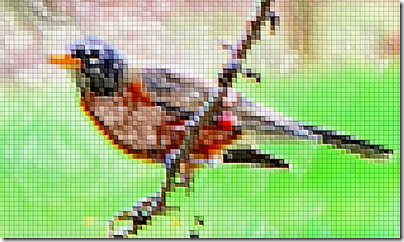
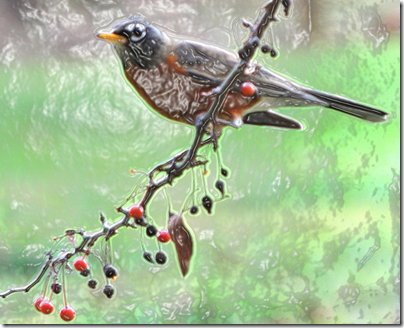
To start here is a mosaic, or “tiled”, picture of a robin. The pixelation effect is called “Light Screen” in “Picture Tools”. It is very dependent on the size of the original image, to get just the right tile spacing may require scaling the photo before inserting it into a Word, Excel, imageor PowerPoint document. This effect was not very impressive when applied to the original photo, so I first used another effect, “Plastic Wrap”. I saved that effect (right-click > “Save as picture…”). “Plastic Wrap” is a rather neat effect, but doing this to a robin might get me in trouble with the animal protection folks. Really, no creature war harmed!
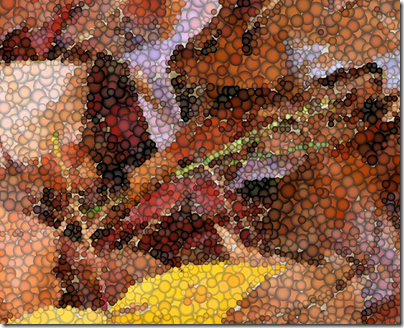
Let’s turn to a less controversial photo subject, a bunch of leaves. Here I applied “Mosaic Bubbles”.image The illustration here is a small portion to show the bubbles better. Now, how about a plastic wrap on this one?
Again a cutout is used to show the effect better in this small blog.
This makes for a totally different look, the bubbles are still there but now they look collapsed and the whole surface is shiny.
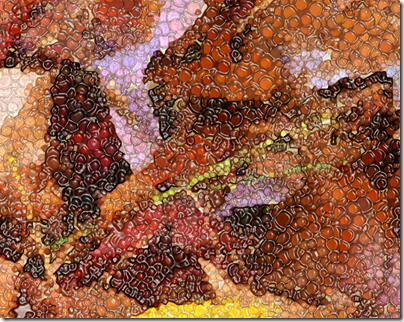
imageHow can you use this effect, or effect combination? Well, that all depends on you, the artist. If you like it, it is good.
Now, let’s continue with the trickery. I will stick to my leaves and add a twist.
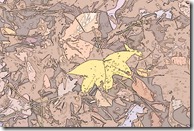
First some posterizing using the “Cutout” effect. Then, to make it more like a drawing, I add edges with the “Photo Copy” tool. In an earlier article I demonstrated the “Photo Copy” effect – like a very old-fashion copy machine from decades ago. With a good bit of transparency this gives a nice print, or wall paper, effect.
LJK_3697-A
LJK_3697-A-WC2
LJK_3697-A-WC2-PC
The three images here show the progression so far. Remember, after each effect is applied, the image is saved. The image is then replaced in Word with the saved one. This is the way to add effect upon effect.
Now I will roll out the canvas and use the “Texturizer” effect. To continue the trickery I load another image, this one of a small snake, and remove everything but the snake with the “Remove Background” tool. Setting both images to “Text Wrap – Tight” allows one image to be freely dragged over the other one. Here is the result:
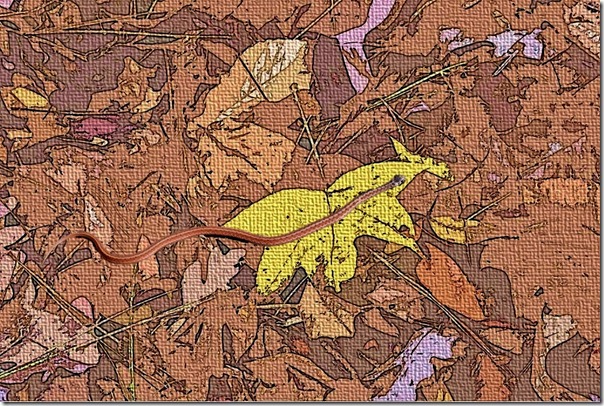
snake on leaves-2
One final trick. In Word not only can you superimpose one image on another, you can do the same with text. A picture of an old cabin serves as the base, I won’t tell you all of the effects applied because I lost count, trying one, then another until I was happy with the result. However, the last and predominant effect is “Glow Edges”. Text uses a “Text Effect” to put the glow around the letters.

HappyHolidays-1200
My best wishes to all for a joyous and happy Holiday Season!
Hope you can spare some time to take some great photos, and maybe use these tools to have fun with your pictures.
“Artistic Effects” in the Microsoft Office 2010 applications were demonstrated in these other articles:
  • Painting with Word – the “Paint Brush”, “Marker”, and “ Watercolor Sponge” effects.
  • Doodling in Officepencil and drawing effects.
  • Excel in Art – the effects called “Cement”, “Glass”, “Glow Edges”, and “Cutout”.
.:.
© 2011 Ludwig Keck