Tuesday, March 15, 2011

A Gallery NEWS Page

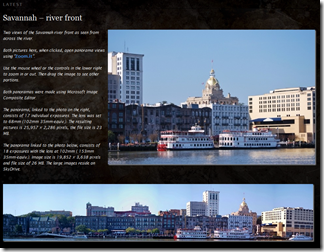
In another post (“The best sharing site? How about a combination”) I presented my views on building a gallery site just the way I like by using a blog as the basis. Also mentioned was the idea of using blog posts to announce the latest additions. Here is an illustration of that idea as seen in the new Internet Explorer 9:

GalleryLudwig-NEWS

This is a really neat way to present the newest photos and other “gallery news”. My “news” page is prepared using Windows Live Writer, as are the other pages of the “gallery”. That is an easy and flexible way to prepare the material. The few glitches, like varying ways that browsers interpret the photo locations, are easily taken care of. I am quite happy with the technique.

Here the link to the gallery: http://galleryludwig.wordpress.com/

And to the news page: http://galleryludwig.wordpress.com/news/

Enjoy!

.:.

.:.

Please also visit my blog on computer tips: This ‘n That

Monday, March 7, 2011

The best sharing site? How about a combination

There are many photo sharing sites, and each has some desirable features. For me none offered all that I wanted, that includes a personalized look and feel, access to slide shows, panoramas, and more. imageMy solution is a combination of several with the “entrance” based on a blog.

This allows using the “photo album” feature in Windows Live Writer to create the page layout I like and to link to my SkyDrive albums.

Another advantage of using a blog is the use of posts for the “latest additions” announcements. image

Linking to various photo sharing sites, Picasa Web Albums, Flickr, Shutterfly, and others makes the site fun to use and easy to maintain. Live Writer is my maintenance and update tool.

I can add to my SkyDrive, Flicker or Picasa Web Albums right from Windows Live Photo Gallery. With the links on my “gallery site” already in place, I need do nothing more. The photos will show up in the slide shows.

Other tools, particularly Microsoft Image Composite Editor, can be used to make panoramas or extra large images. These can be hosted on SkyDrive and displayed with “Zoom.it”. You will also find a 360 degree Photosynth image. All that is made possible by using a blog – no single photo sharing site can do all this.

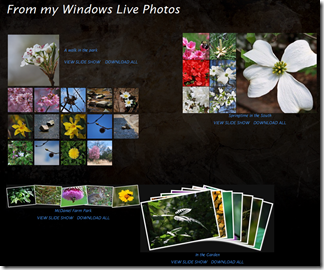
My “Gallery Ludwig” blog is a work in progress. I will be adding more pages and links and, of course, photos. Enjoy. The photos here link to two of the pages.

.:.

Please also visit my blog on computer tips: This ‘n That

.:.

Sunday, February 20, 2011

Distortion and Perspective – tilting buildings

Especially when using a wide-angle lens, or wide-angle setting, photographing tall buildings, trees, or other structures, causes the resulting photos to show the structures “falling in on themselves”. What causes that distortion, can it be avoided, and can it be fixed?
BuckheadThe situation is illustrated here in an exaggerated manner to show the problem. This is not distortion, although we may commonly call it “perspective distortion”. This is really how the world – optics, physics, and geometry – really work. When we look at the scene we seem not to see this distortion. Our brains take care of what comes through our eyes, instantly process the view, and present us with an “internal model of the world”. We know the buildings are vertical, and that is what we think we see.
BuckheadHere is a view looking up at a building. Again there is much perspective distortion, but in this view it does not seem to bother us. When we look up, this is what we see also, and we accept this perspective as natural.
Why the difference? In the wide-angle view we think we are farther away then was actually the case. The camera covered a wider field of view than we would see. From an actual distance where we could take in that view with our eyes, we would not see the same perspective. So the image does not jive with our normal experience. Can that problem be avoided or corrected?
Yes, the perspective distortion can be avoided: Do not tilt the camera upwards. It is as simple as that. When the camera is horizontal, more specifically when the sensor plane is parallel with the vertical surfaces, the resulting photo will show all the vertical lines indeed parallel and vertical. That comes from the optics and geometry, but let’s not get into the science.
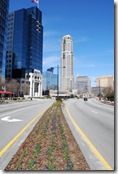
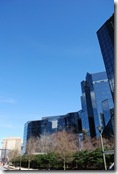
But, you say, I can’t get all of the building into the picture, and besides, that gets a lot of uninteresting foreground into the photo. So my first suggestion is rotate the camera to take vertical pictures. Now you can’t get in all that you want to show. So take several pictures. Here are a series of photos that were taken with the camera pretty much horizontal and rotated for vertical pictures.
BuckheadBuckheadBuckheadBuckheadBuckhead
Note that I took a series of photos that overlap the scene. The reason is so LJK_1964-8-PGpan-raw-400that I can let Windows Live Photo Gallery combine the photos into a panorama. Here it is. Now I have a wide-angle photo of this streetscape in Buckhead, Atlanta, Georgia, that looks pretty good. With some cropping and less of the monotonous foreground I get a nice photo.
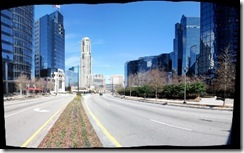
LJK_1964-8-PGpan-cropped-600
Can Photo Gallery do such a nice stitching job with photos if I tilt the camera up a bit as I take the shots so that more of the buildings shows?
You may have seen claims that you can do that (see my post “Distortion and Perspective”). Unfortunately when you ask Photo Gallery to stich such a set it works out differently.
Here again is a set of five shots, this time with the camera tilted up to eliminate the foreground pavement.
BuckheadBuckheadBuckheadBuckheadBuckhead
LJK_1979-84-PGpan-400Now hand them to the Panorama tool in Photo Gallery. Does it correct the perspective distortion? Take a look. The simple Panorama tool in Windows Live Photo Gallery does a fine job when you hold the camera to shoot horizontally. With photos that were taken aiming up, or down, the resulting stich will be more like part of a circular fish-eye image.
But there is a solution even for this set of photos. Photo Gallery, under the Create > More Tools command offers Create Image Composite… – if you imagehave Microsoft Image Composite Editor imageinstalled. (It is a free download, you can get it here).
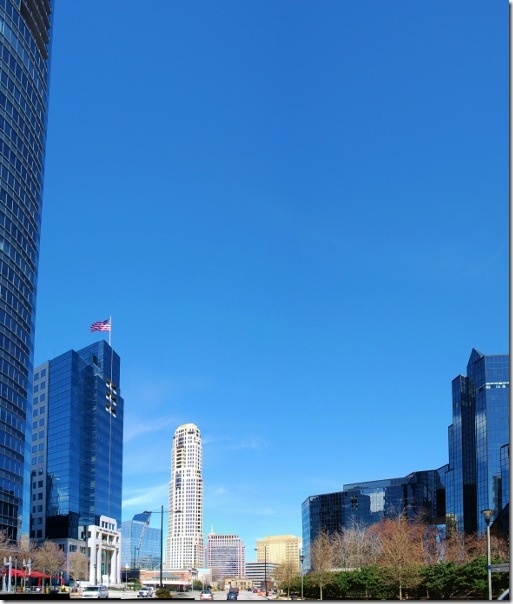
ICE, as I like to call it, is a very powerful and versatile stitching and perspective control program. It permits control over the projection of the resulting image – in this case I set it to Cylinder (Horizontal) because that matches the situation. The resulting image can be controlled in real time – you see exactly what you get as you drag the image with pointer. You can also crop the image right in ICE.
Here is a resulting picture from ICE with a horizontal view of over 100 degrees.
LJK_1979-84-ICE-crop-600
Notice that I have not completely eliminated the “tilting” – note the tall building at the left – it looks more natural this way.
So you see, perspective distortion is readily overcome. A bit of planning ahead and you can get the pictures you envision.
Good shooting to you!
For another post on perspective correction using ICE, see Perspective Correction using Image Composite Editor.


Please also visit my blog on computer tips: This ‘n That

Sunday, February 6, 2011

Distortion and Perspective

A while back a colleague posted:
Eliminate wide angle distortion with Panoramic photosHave you ever wished that you could capture a whole scene in one frame without having the trees/light poles/buildings slant towards the center?  You can!  
And then, unthinkingly, proceeded to confuse perspective and distortion as well as the readers.
In this post I would like to take up the first part: distortion.
Most of tzoom lenses on popular cameras present some barrel distortion on the low end of the focal length range. What is barrel distortion? Here is a photo taken with the lens covering about 76 degrees, the equivalent of a 28mm lens on a 35mm camera.
LJK_1894-600
LJK_1894-PSP-600This is the inside of the famous Grill in Athens, Georgia. There was no way to step back far enough so I used the shortest focal length setting – 18mm. Note the curved ceiling. This is distortion. Here an exaggerated version with more barrel distortion to illustrate the effect.
The lens barrel distortion is pretty well gone at longer focal length settings. So I took several overlapping exposures of the same wall and stitched them into a panorama with Windows Live Photo Gallery. To show the stitching I did no cropping:
LJK_1895-Grill-WLPGst-600
ICEWell the barrel distortion is well reduced but now there is obvious perspective distortion. Live Photo Gallery does not provide any controls for the stitching process, but Microsoft Image Composite Editor, “ICE”, does. ICE allows shifting the combined image to achieve perspective control. I will have more on this in another post. For now here is the resulting image, again without cropping from ICE:
LJK_1895-Grill-ICEst-600
So it is possible to reduce wide-angle lens barrel distortion by using tiled exposures obtained at focal length settings that do not show the distortion.
The slanting tress/light poles/buildings is, however, a perspective problem. More on that in another post.
Grill-ICE-2 (600x196)


Thursday, December 2, 2010

Happy Holidays! Word 2010 as my Art Studio

HappyHolidays

Wishing you all the best for the Holiday season and the Coming Year!

This card has been in the works for well over a year. Last December I prepared decorations as I remember them from way back in Europe some seven decades ago: Home-made cookies and candy and real candles, of course. 2009-12-23 ChristmasTree-DS 018 - Copy

Then came the photo session. The shot I finally settled on was this: You can see some of my set and how the lights were set up. File conversion, touch-up and cropping was done in Windows Live Photo Gallery. For the final picture editing and manipulation, I used Microsoft Office Word 2010 and the marvelous Picture Tools it provides. The image was converted HappyHolidays-W2010using Artistic effectsCutout, set to 6 shades. I added three shapes – a black box to define the background, a gradient for the glow around the candle and a four-point star for the light spikes. It is nice how images can be stacked with specific colors picked as the transparent layer. Cropping and the greeting text, with Text effects applied, finished it to my satisfaction. 

Sure, I have image editing programs that can do all that, and better. But I enjoyed using the simple tools in Word, Windows Live Photo Gallery, and Paint, to create just what I wanted to share with you. We all enjoy making and receiving home-made gifts. This one I made for you!


Wednesday, November 17, 2010

Noise reduction in photos

In another post I showed how to lighten shadow detail in photos with strong lighting contrasts (Coping with harsh sunlight). The price one pays for lightening dark areas is making noise much more noticeable. Although there is no free lunch, it is possible to reduce the price. “Noise Reduction” to the rescue.

Here is an example photo, one that was taken in direct sunlight, with deep shadows in the subjects face. The strip shows a section of the original with the same section from heavily post-processed versions.

The left-most image is a crop from the original – clearly too dark to even recognize the child. Processing was done using Windows Live Photo Gallery 2011. In the second image the Adjust ExposureShadows slider was set full right, the edit mode closed to save the file and the process repeated. This just about eliminated the shadows. You can see the effect better by clicking on the image strip for a larger view. Noise became very prominent in the areas that had been dark.

Next I aggressively reduced noise, see third image. You can see that the image histogramis “smoother” but has some ugly artifacts. In the “lighten shadows” operation the dark area was lightened by a factor of about six. See the histogram of a small area (original on top). The noise was also increased by this factor and was too high to be effectively eliminated by the noise reduction step.

How about doing the noise reduction first then the lighten shadows operation? The result is shown in the fourth image. Smoother, but notice how small detail (hair in front of hat) has been blurred.

The fifth, right-most, image was produced by reducing noise, but less aggressively, then lightening the shadows, followed by another noise reduction step. This last procedure produced the most acceptable result.

Still no free lunch, but using all the editing tools available in Photo Gallery can go a long way to getting results you can share with pride.

Please also visit my blog on computer tips: This ‘n That


Saturday, October 23, 2010

Coping with harsh sunlight

Since time immemorial photographers have been admonished to avoid the noonday sun. Yet morning and evening sunlight, though nicer in direction andLJK_1744-DEMO3-A3 (640x640) color, can also produce inky-black shadows in pictures, that make them almost worthless.

There are ways around this dilemma.

SunPick a setting where lots of light is reflected into the shadows. Think white-washed walls on Greek islands, sugar-white sand on Gulf coast beaches, fresh-fallen snow. Maybe those are not always practical.

SunUse one or more reflectors to lighten up the shade. I like white umbrellas, they are more compact than most professional equipment and lot less expensive. Watch the umbrella display on your next visit to the drug store.

SunTurn on the flash on the camera for fill-in light. Most digital cameras even have a setting for this.

Light bulbIf none of the above are workable solution for a situation, there is post-processing! You guessed the reason I chose a fast-moving kid in bright evening sunlight with the surroundings in deep shade, so the shadows would be dark!

Getting the shadows lighter is easy. Here views of Picasa and Windows Live Photo Gallery in action. Note the red pointers.

fix-shadows

In Picasa (on the left) the control is called “Fill Light” – the default setting is with the slider at the left. Moving the slider right lightens the shadows and you can see immediately the effect. In Photo Gallery the control is under “Adjust exposure” and is called “Shadows” (click Fine tune to get to the controls). This control goes both ways, to the left to darken shadows, to the right to lighten them.

Ah, but even here at Café Ludwig there is no free lunch. There is a price to pay when doing this. Let’s take a look at exactly what happens when you “lighten the shadows”. The image consists of individual pixels, each with its own level (really in each color – red, green, and blue). The lower level pixels are changed – amplified – to a higher level. The lowest level pixels, nearly black, are also at the lowest electrical level. There is always some electrical noise in processing signals, the lowest pixels are affected the most.

If the noise is just one bit up or down, that is 1 in 256 for normal 8-bit JPG images, then the bits at level 1 maybe recoded as o, 1, or 2 – a huge percentage. The noise problem gets less for higher pixel values. A pixel at level 10 with this noise would be 9, 10, or 11. Just a ten percent change. LJK_1751-DEMO3-A2

When these pixels are increased in value, so is the noise. Double that level 10 pixel, and the noise is now twice as large. Here is a close-up section of a photo showing the face our athlete. The left side was in deep shadow, the right in full sun. Bringing up the low-end pixels to “lighten the shadows” also brought up the noise. You can readily see that in the illustration.

So there are limits to post-processing “fill light”. Is there help for this? Of course, why else would I ask the question?

When using Windows Live Photo Gallery, Picasa, and other common application the photos are processed in 8-bit JPG format. That means there are 2-to-the-8th, or 256 levels. Most cameras can do better than that, “raw” format is usually 12 or 14 bits deep. That means there are many more levels before the noise is reached. Astonishing improvements can be achieved when using dedicated image-editing applications like Photoshop, Paint Shop Pro, or others of this type, that can take full advantage of what the camera delivered.

For me, well, I will keep my white umbrella handy.